Once Batch Decontamination has been turned on for an organisation, the interface of the app will change for all users. The home page of the app will default to “Individual” decontamination cycles, but the mode can be toggled to “Batch” by either tapping Batch, or swiping the screen to the left.
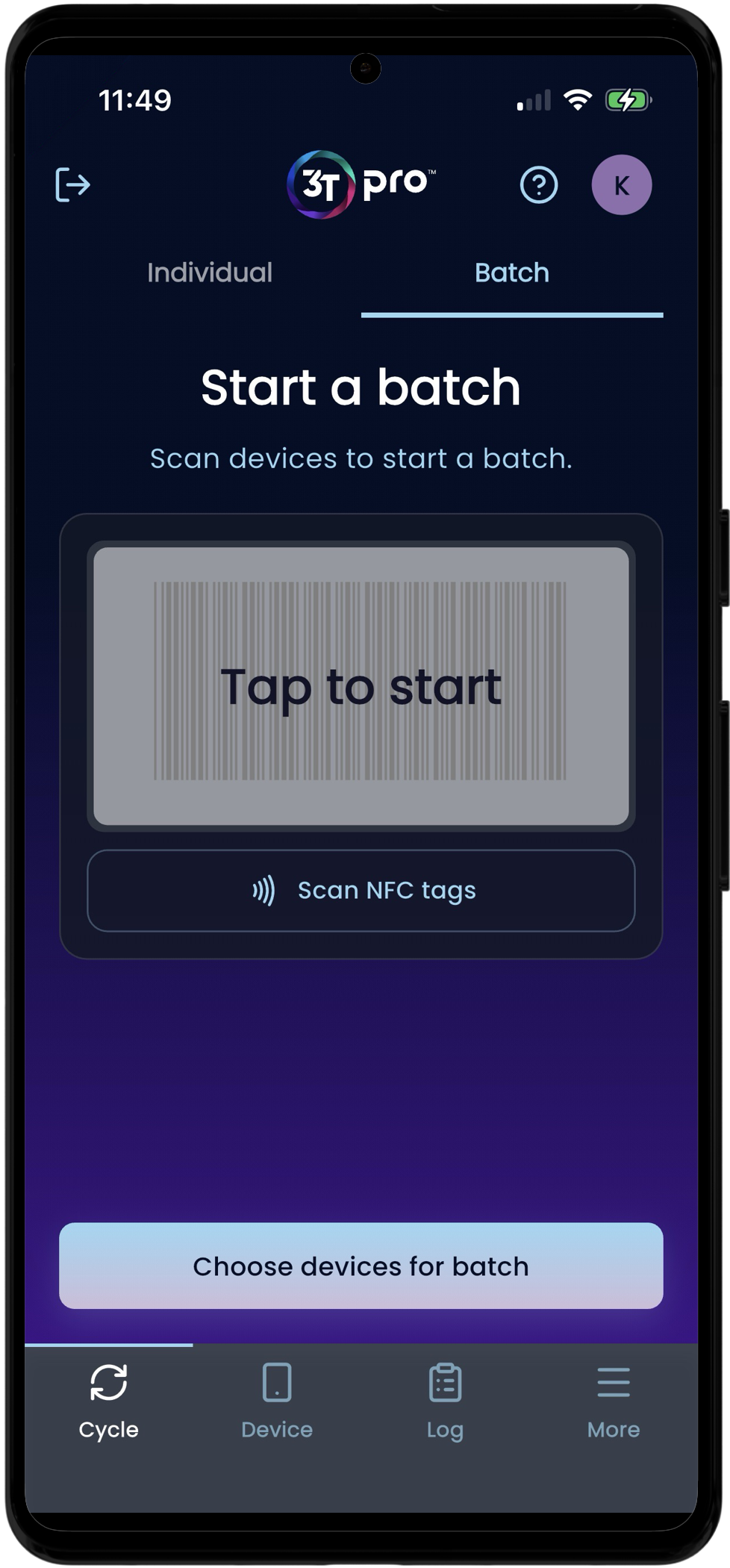
Starting a Batch cycle is much the same as starting an Individual cycle.
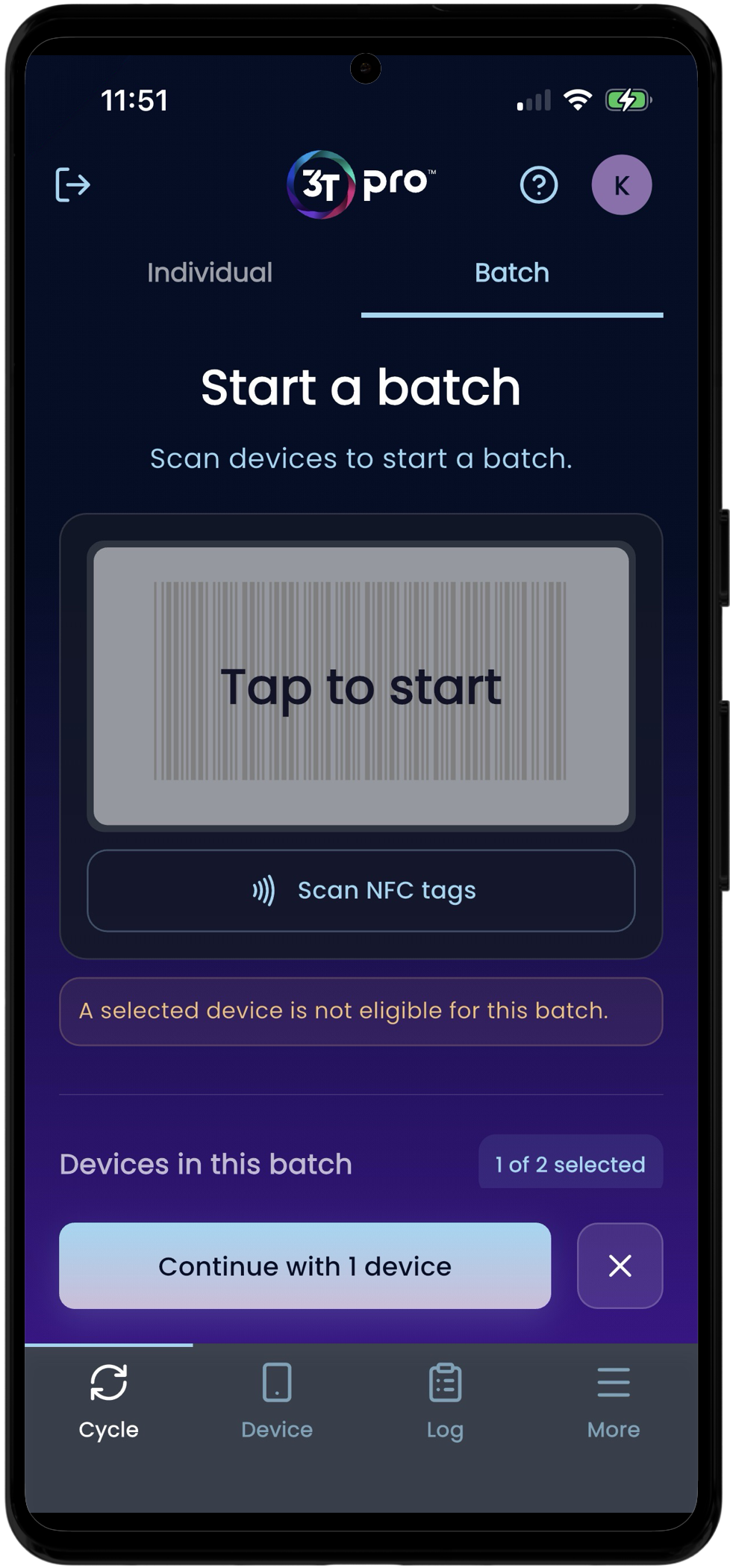
Tapping the scanner activates the handset camera to allow QR codes and barcodes linked to the medical devices to be scanned. The app will allow the user to scan multiple codes and will add all medical devices scanned to the batch, up to the maximum limit that has been set by an Organisation Administrator.
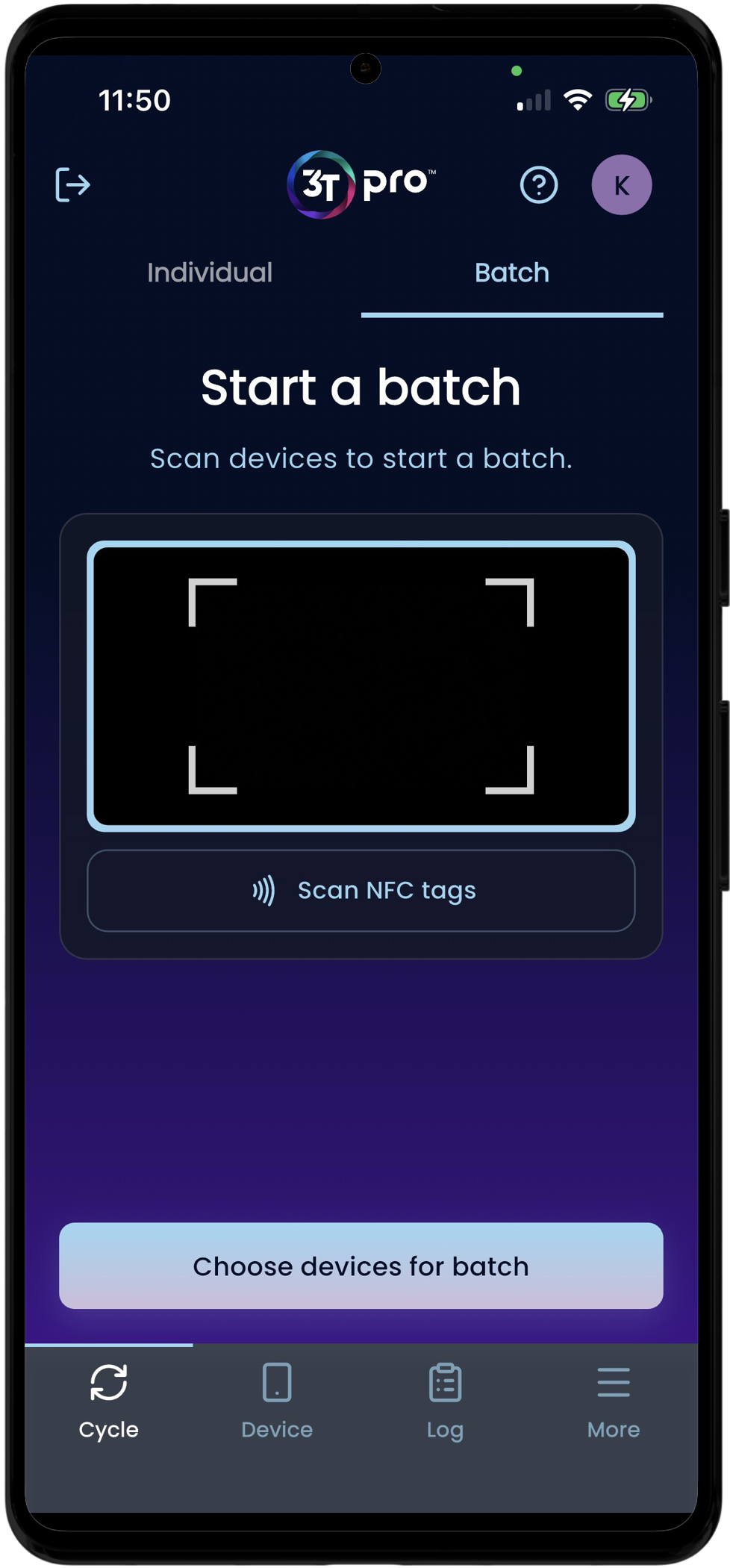
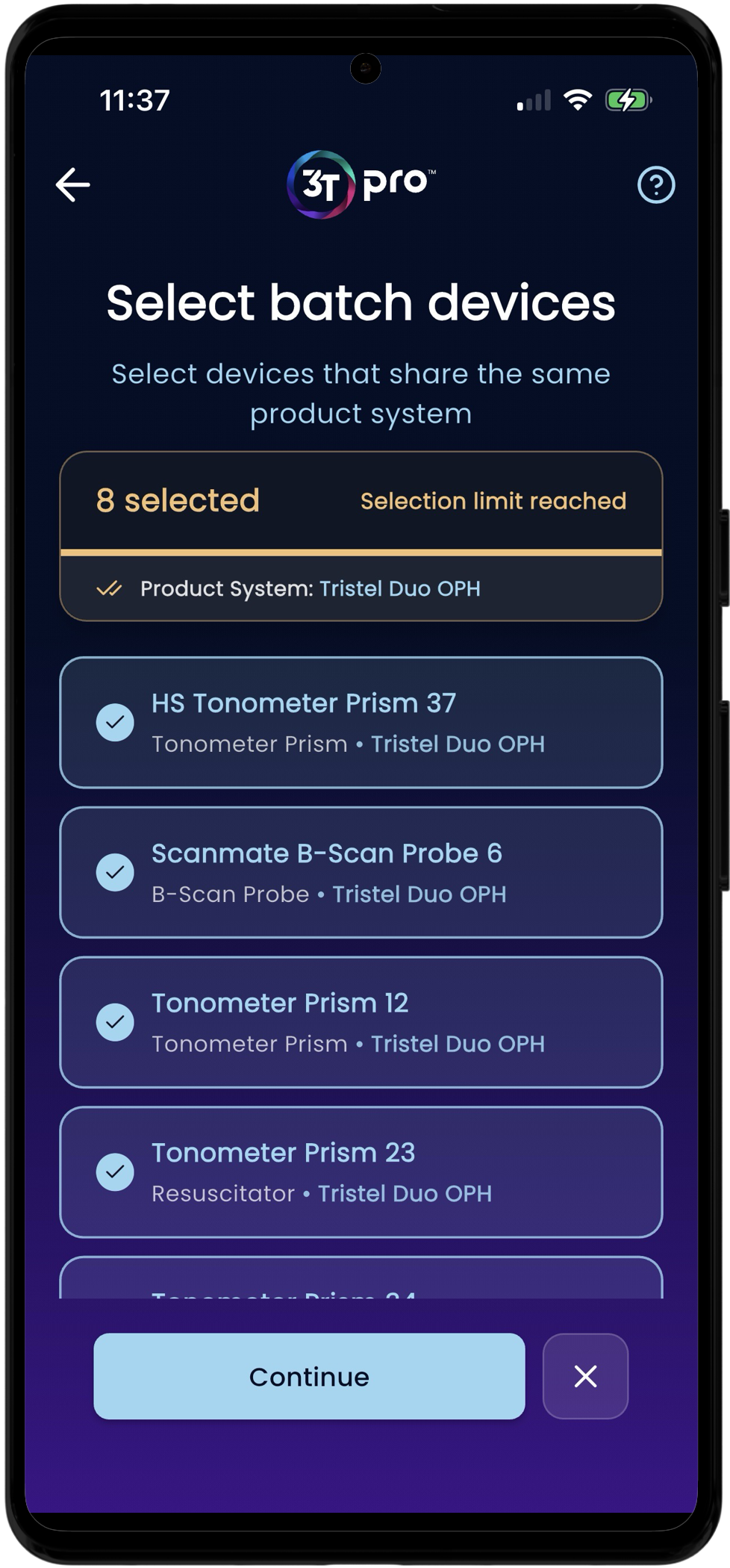
3T SmartTags can also be scanned and added to the batch. To do so, tap on the “Scan NFC tags” button and move the handset to within close proximity of the 3T SmartTag. Again, multiple medical devices can be added to the batch in this way, up to the maximum set by an Organisation Admininstrator.
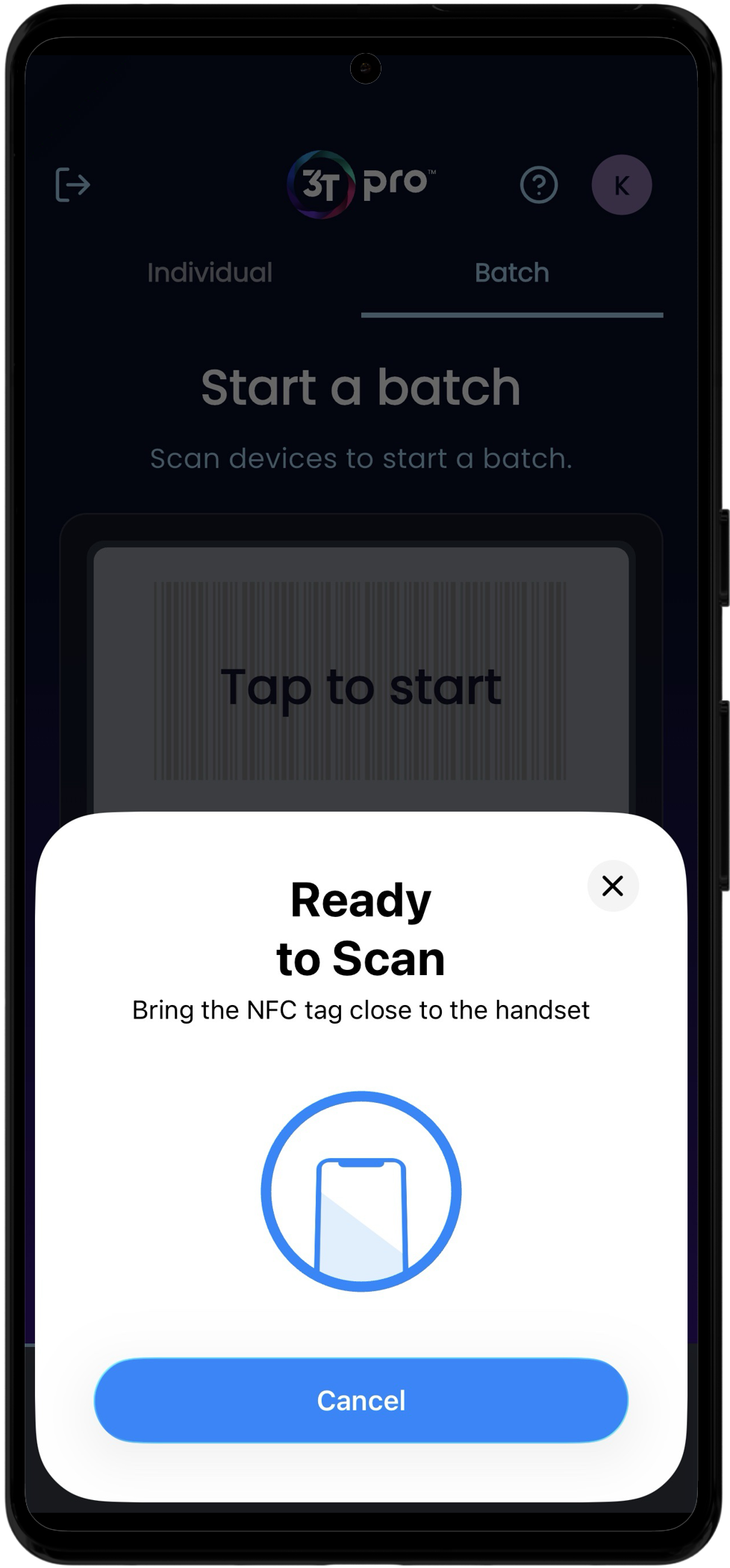
Finally, a list view of all medical devices in the organisation can be access by tapping “Choose devices for batch”. Tapping the relevant medical devices in this list view will add them to the batch.
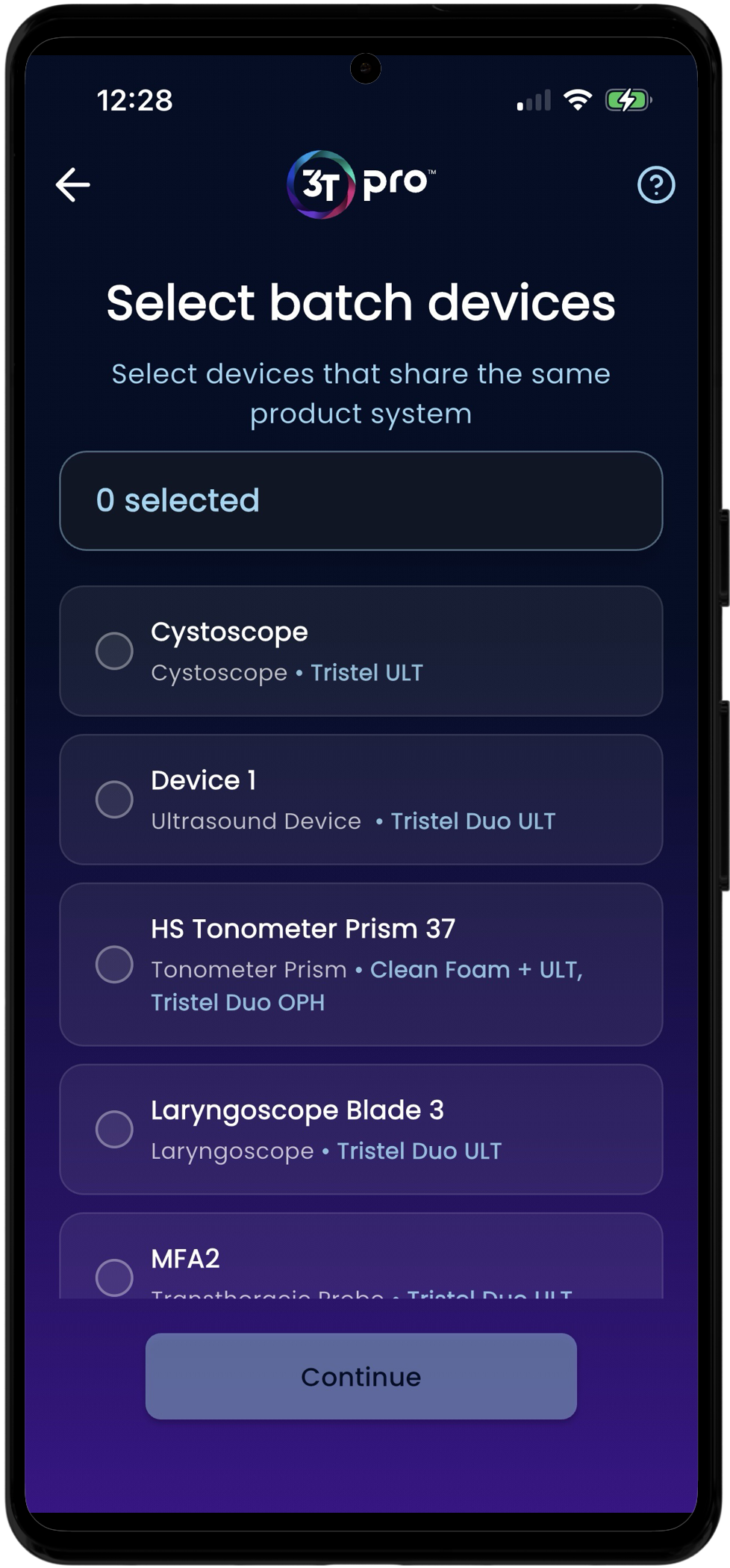
Only medical devices that share the same Tristel decontamination product may be added to a batch together. Attempting to add a medical device that is assigned to OPH and one that uses ULT will result in an error being shown on screen.
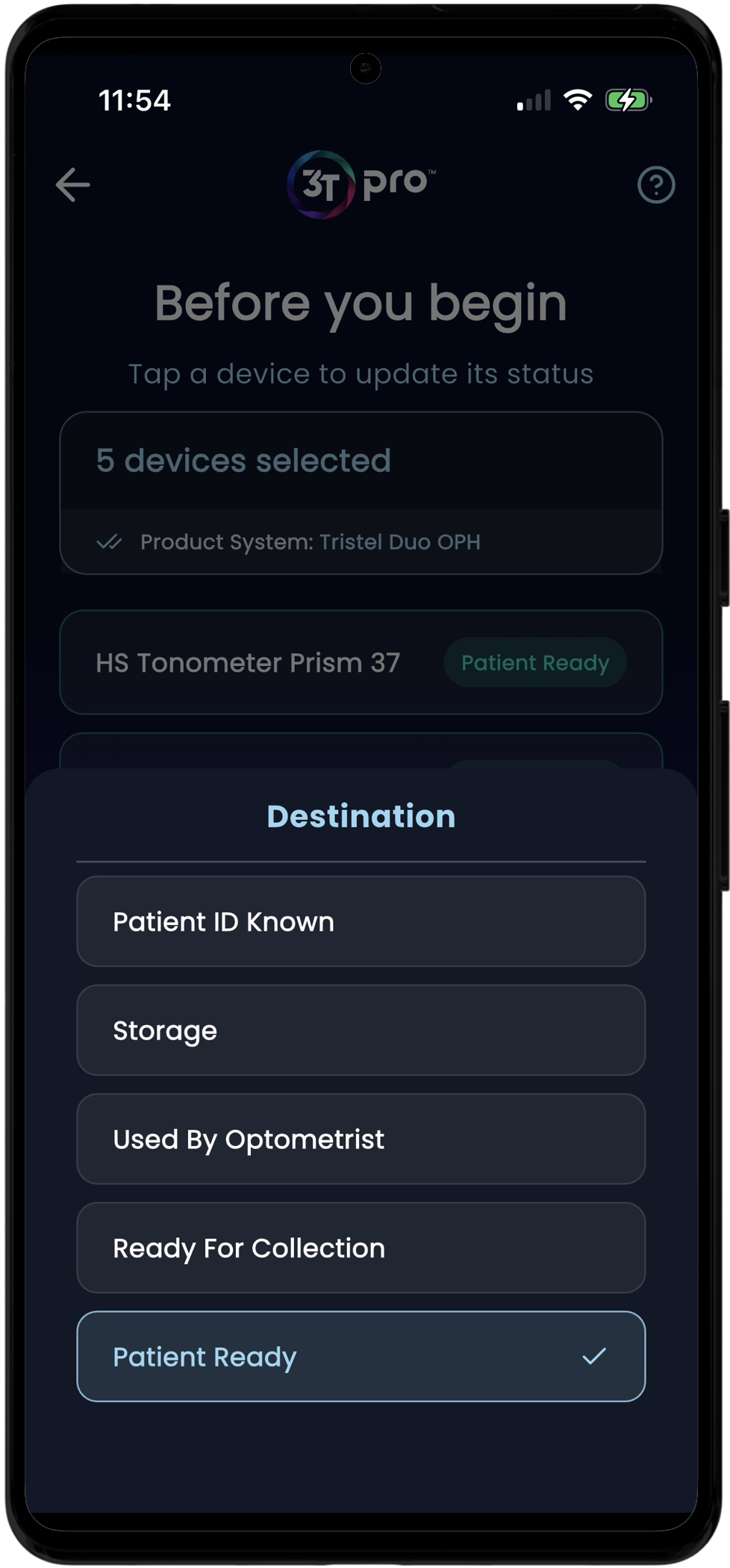
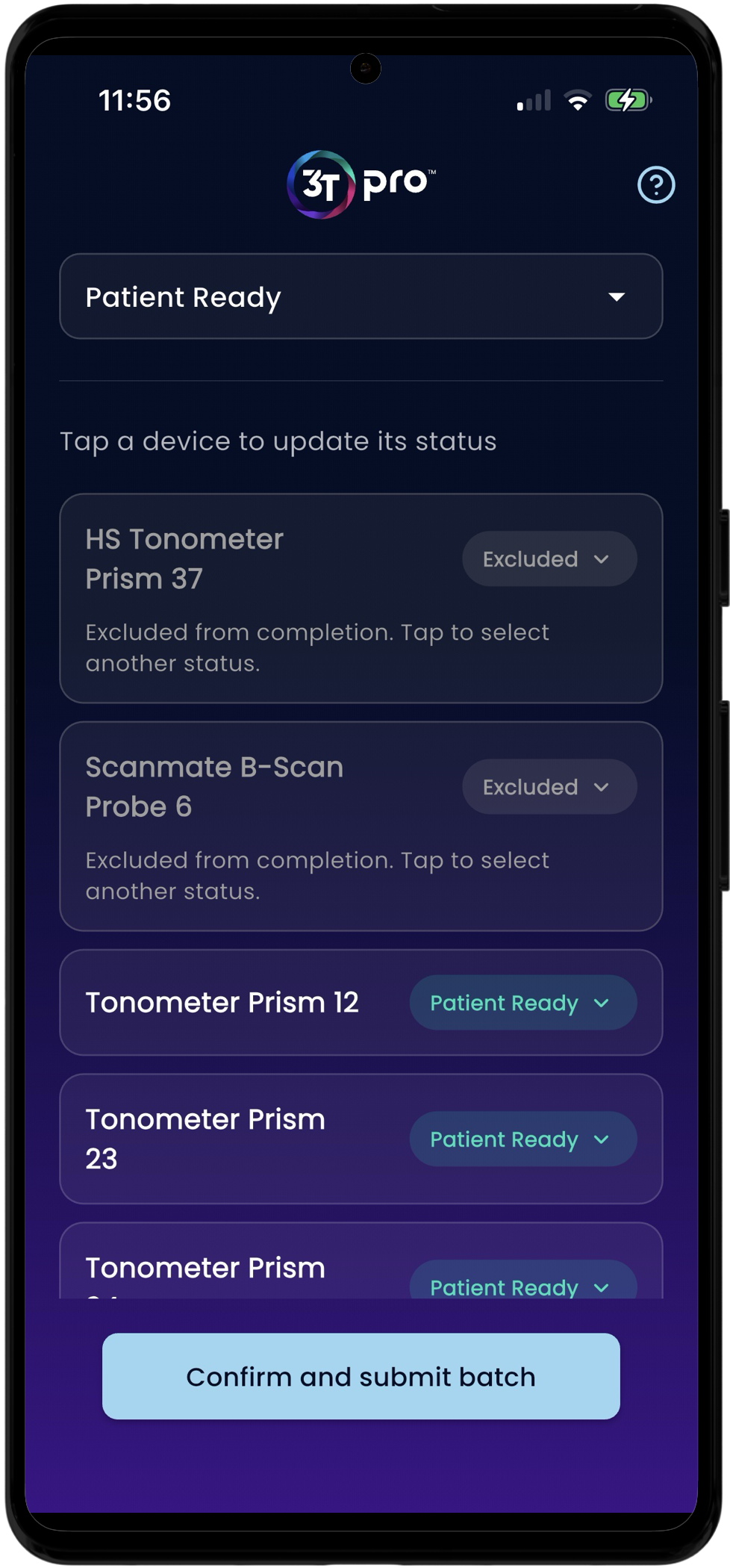
Moving on to the next stage allows the user to ensure all medical devices are in the correct status before beginning the decontamination. The devices can be changed by tapping on them and selecting the status they should be in.
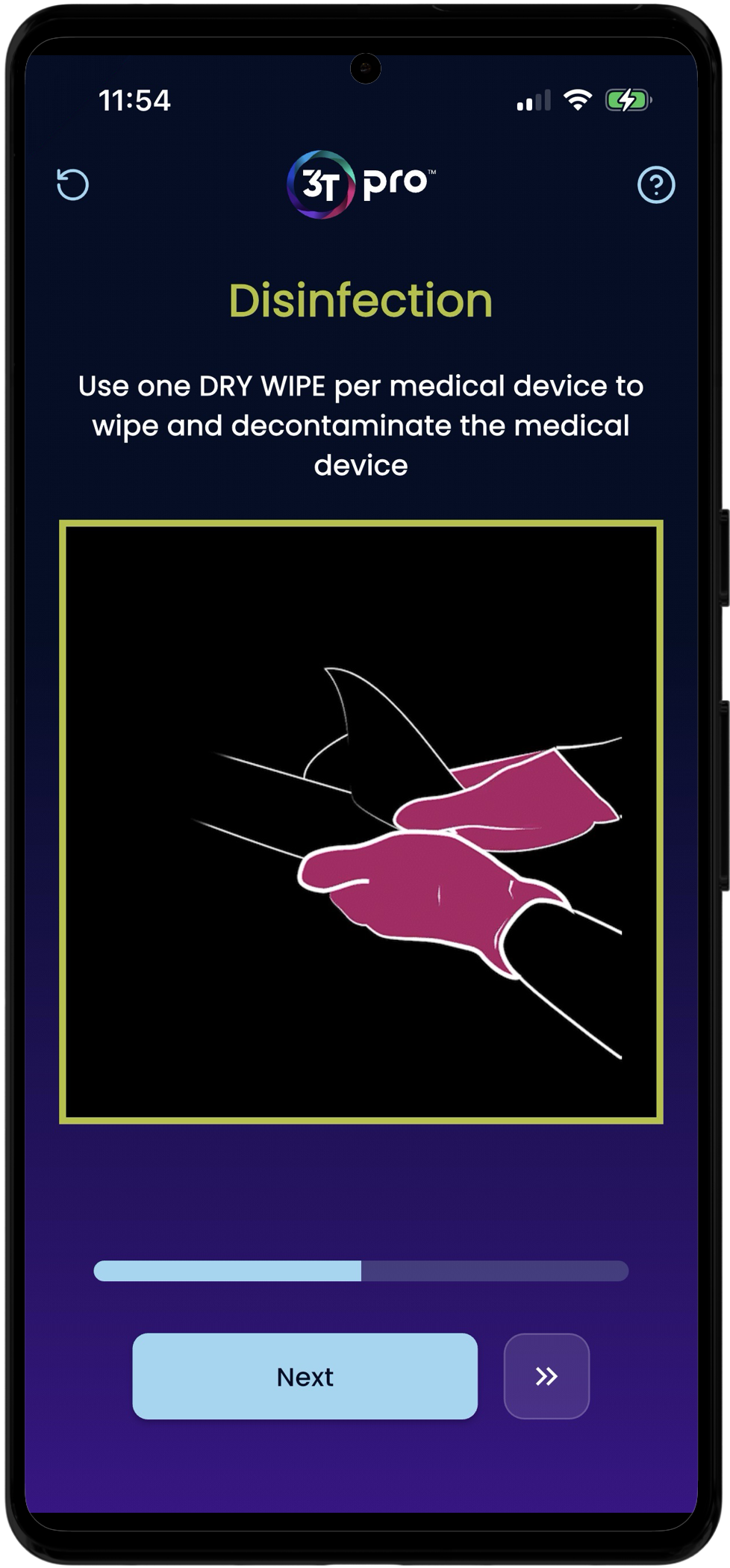
Once all devices are in the correct status, a batch cycle can begin. As per individual cycles, the app will guide the user through the process, with batch specific instructions (if the Product family has been set to batch instructions. If the Product Family has been set to No Guidance, no instructions will be displayed and the user will need to follow the IFUs for the Tristel product through their own training and knowledge).
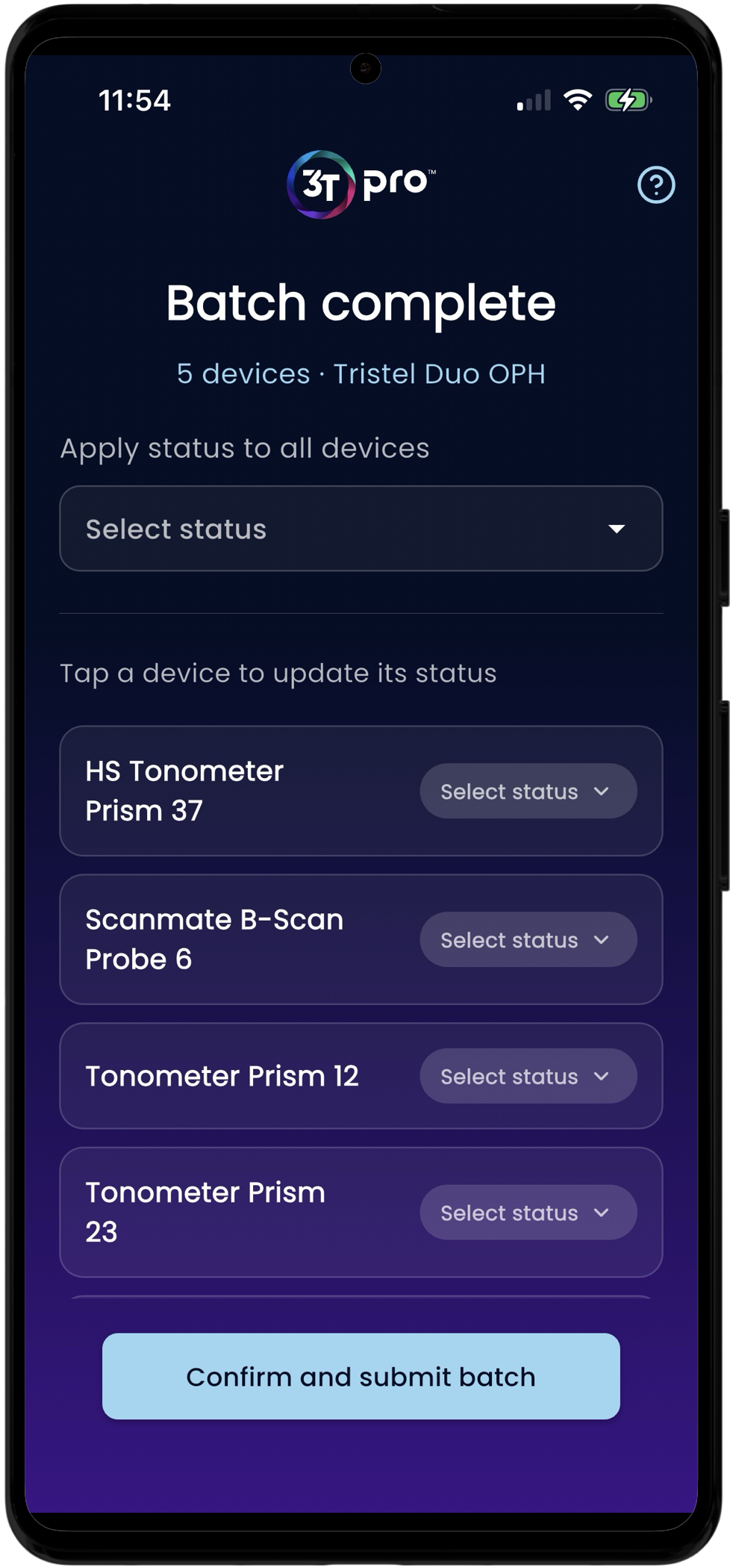
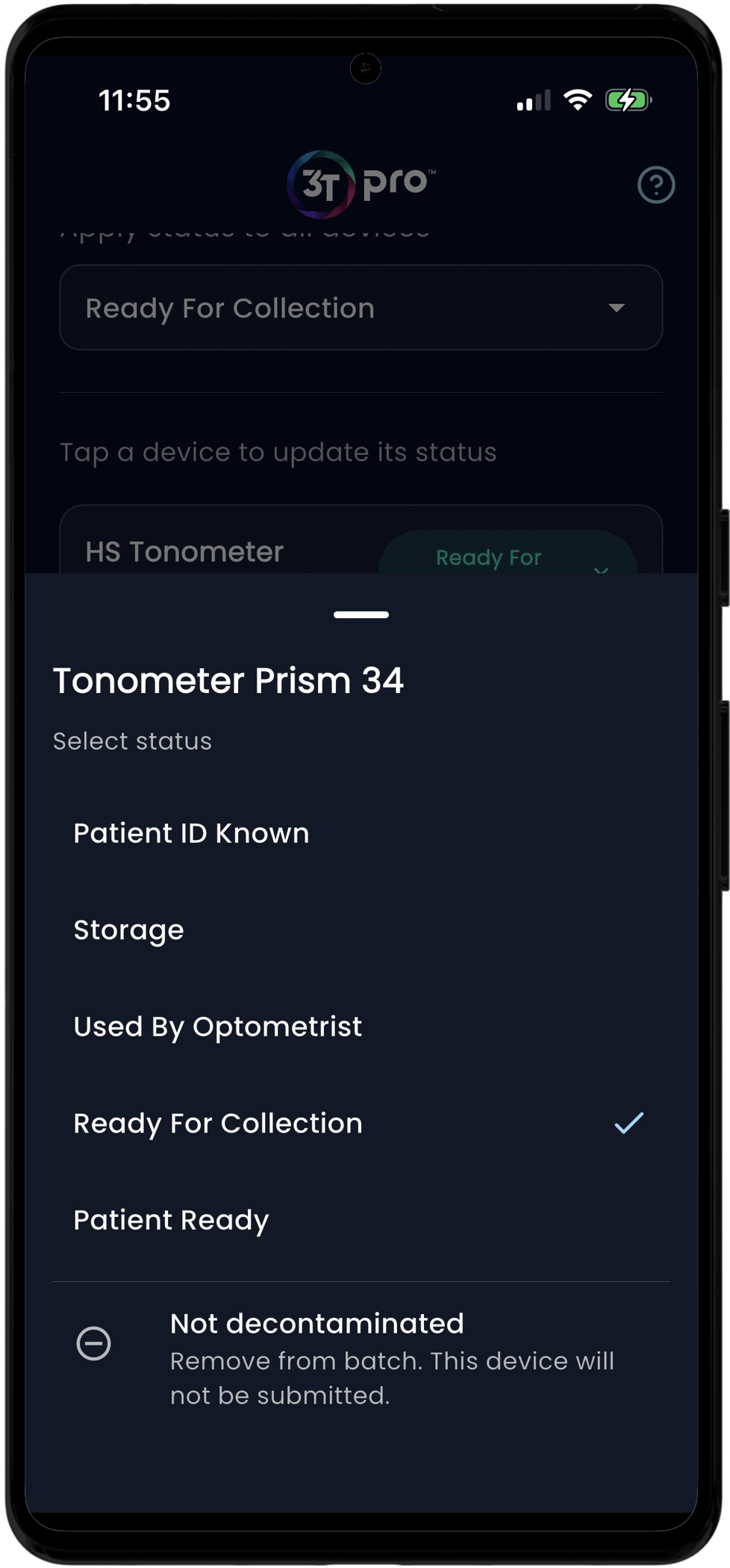
Once the batch decontamination is complete, the status for all medical devices must be added. This page is very similar to the pre-cycle status update, where the dropdown menu at the top of the screen allows all medical devices in the batch to be set to the same status. If individual medical devices need to be changed, the user can do this on the relevant row on screen.
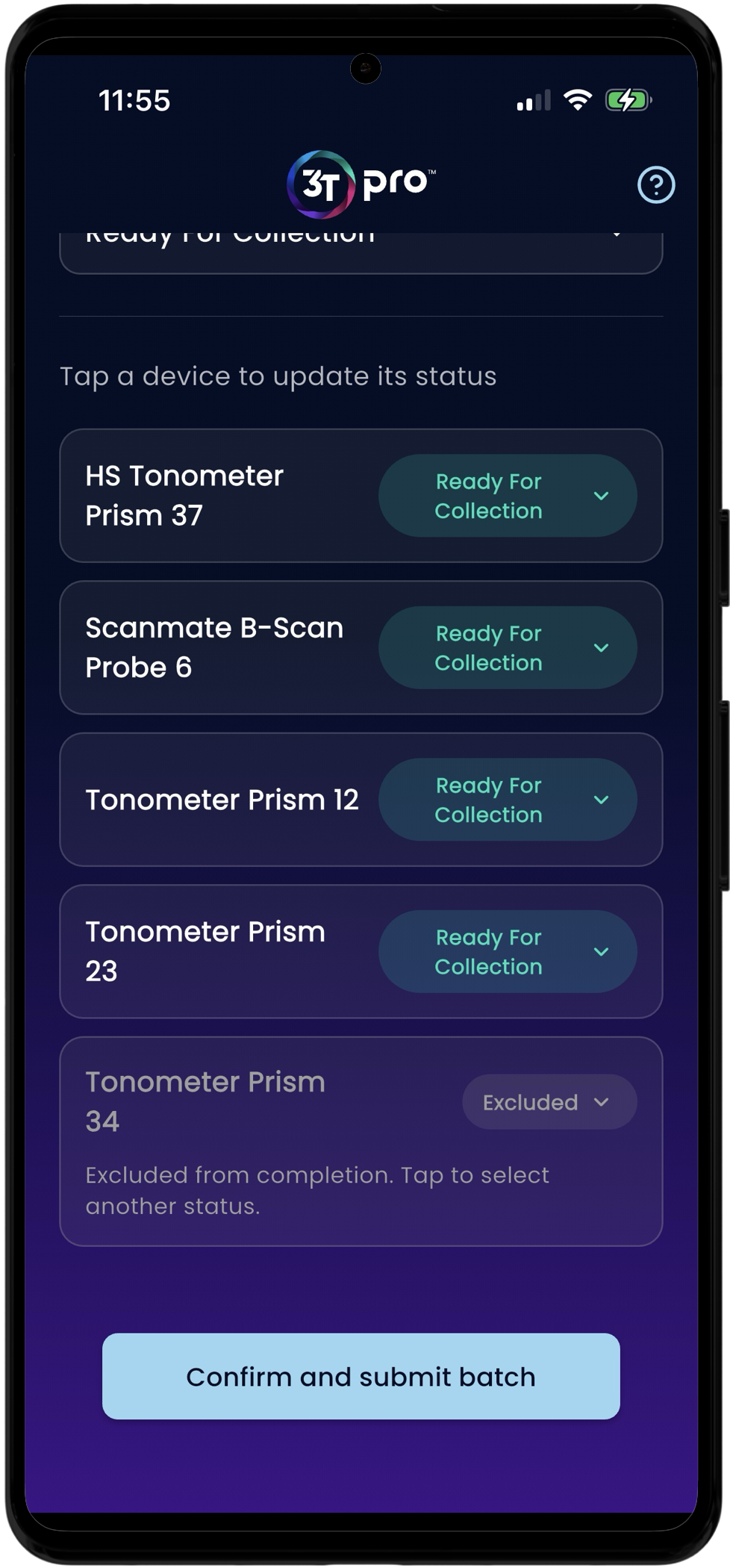
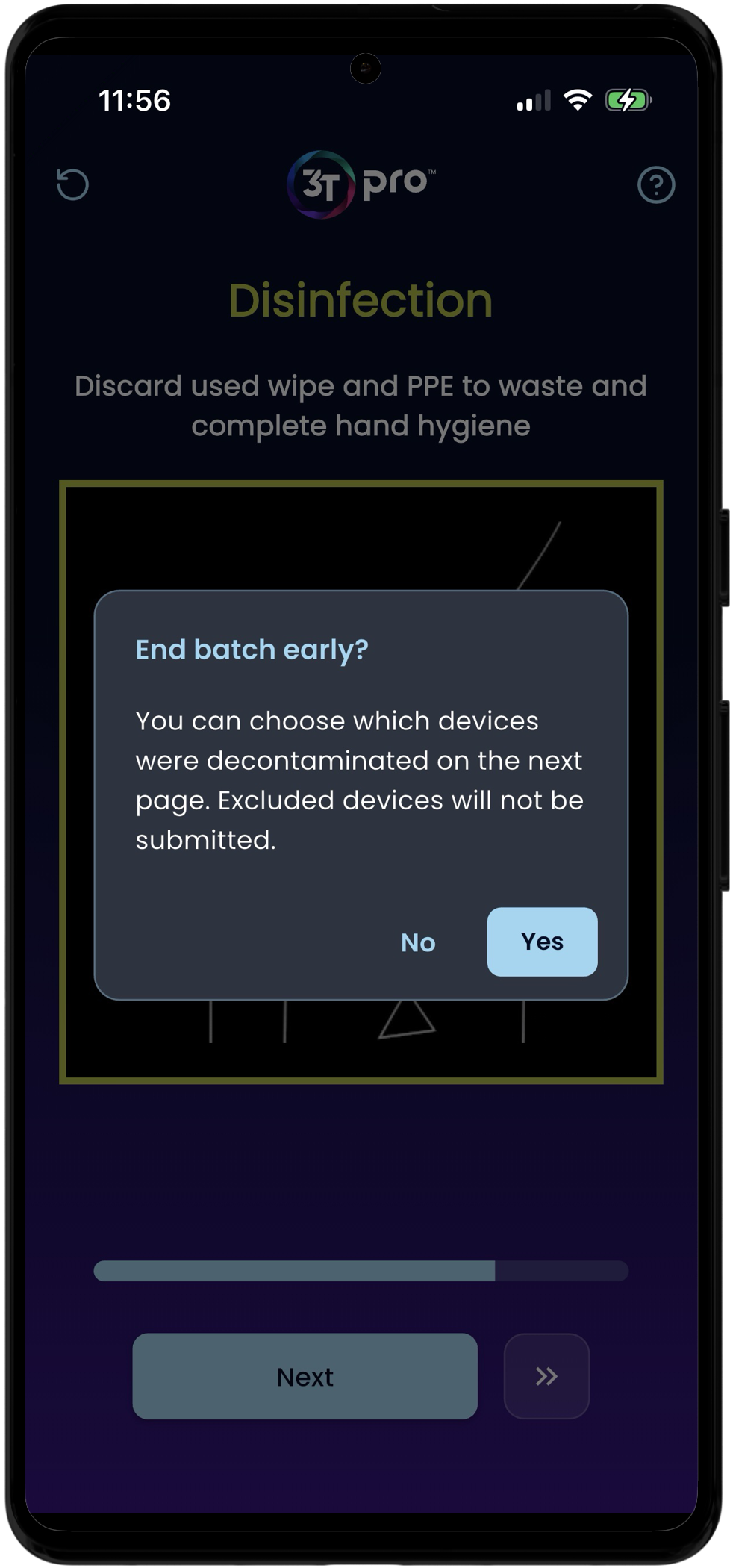
There is a built in escape hatch within a batch cycle that allows the user to end a batch cycle early if needed. This may need to occur if a user runs out of Tristel decontamination product before they can cover all medical devices, or if they get called away on another urgent task.
To end a batch cycle early, tap on the icon to the right on the “Continue” button in-cycle. Once the user has confirmed they would like to end the cycle, the app will give them the option to identify which medical devices were not included in the batch. They will be removed and will not be included in the batch.
For users who have No Guidance set as their instruction type, medical devices can also be removed from a batch at the end of the process.
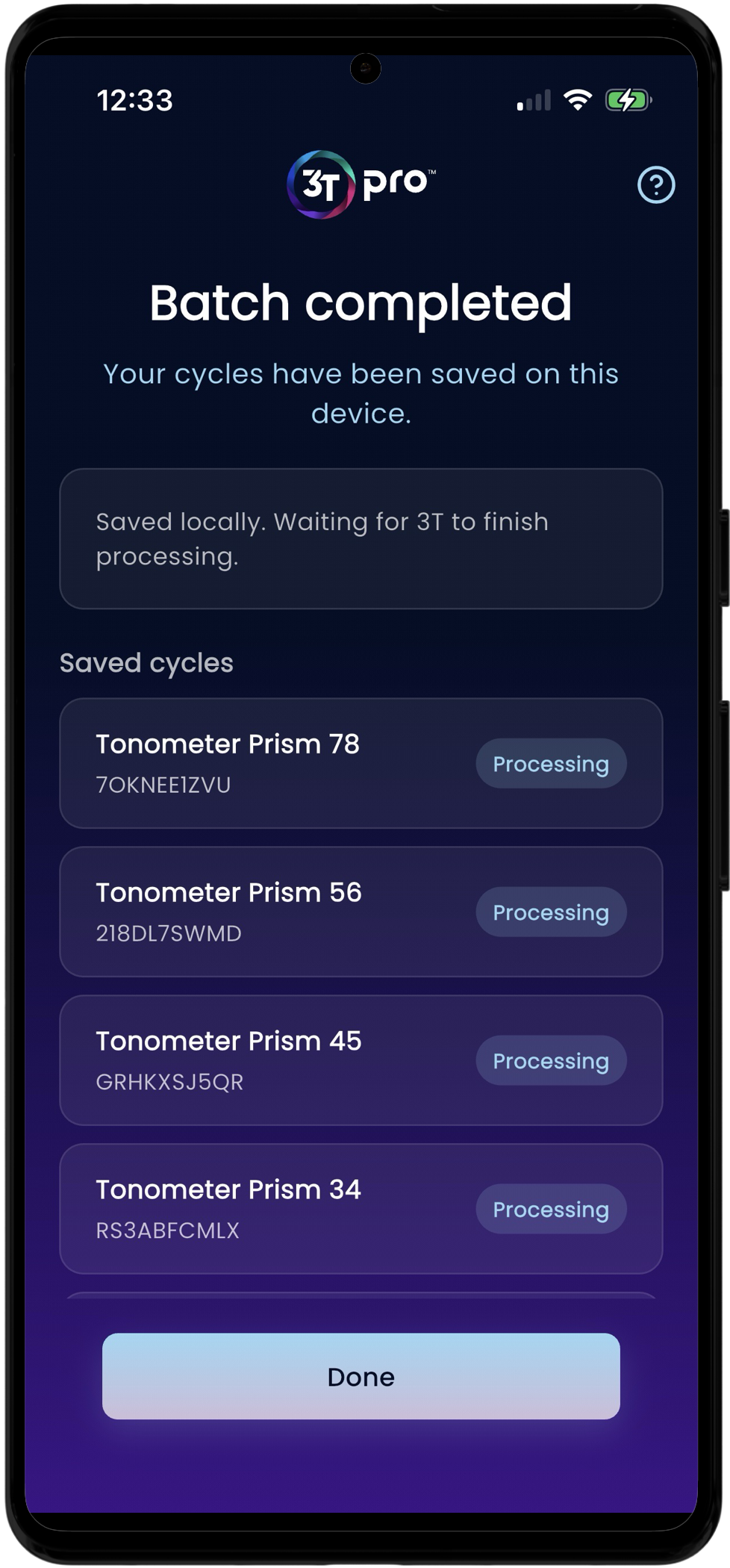
The progress of a batch syncing with 3T will be displayed at the end of the process.
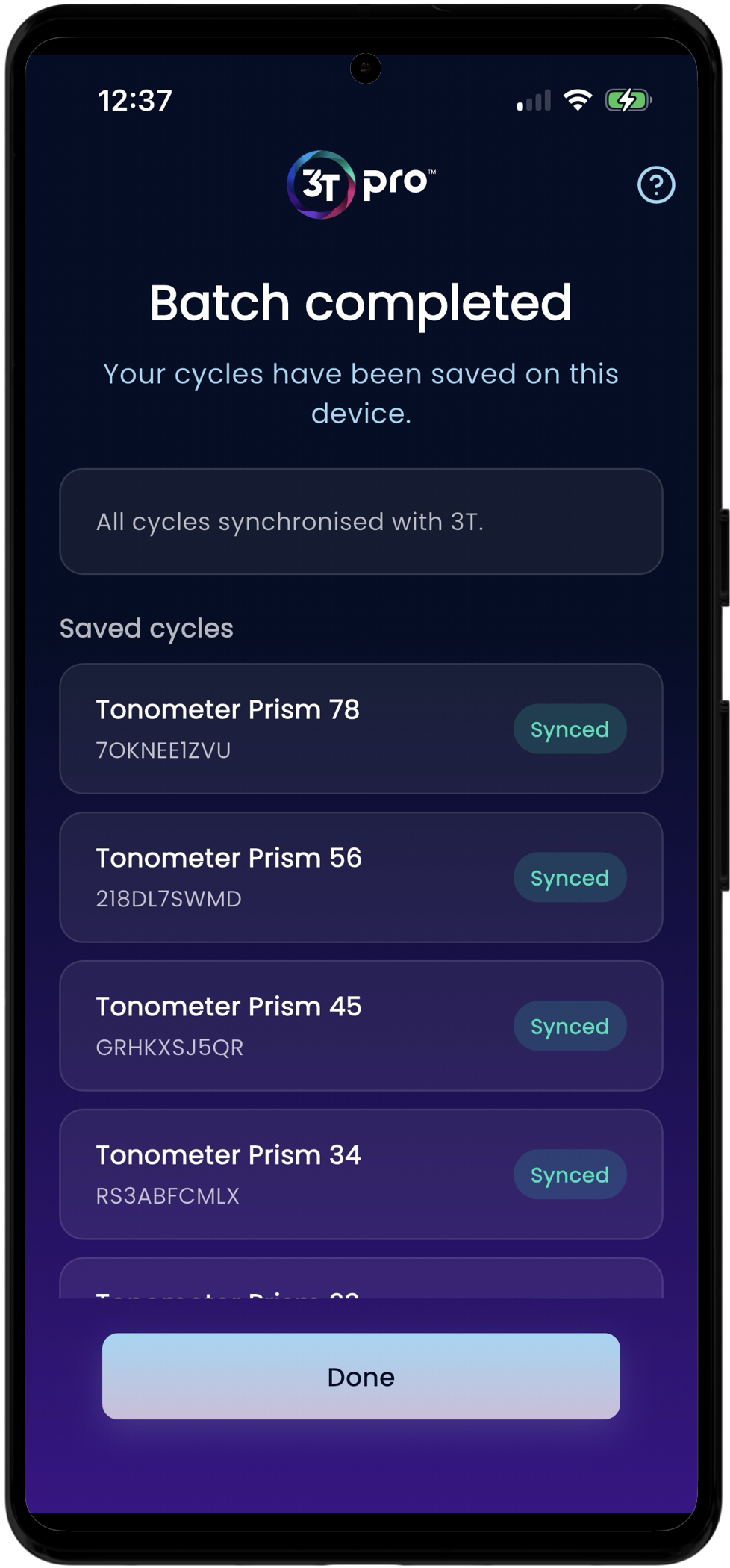
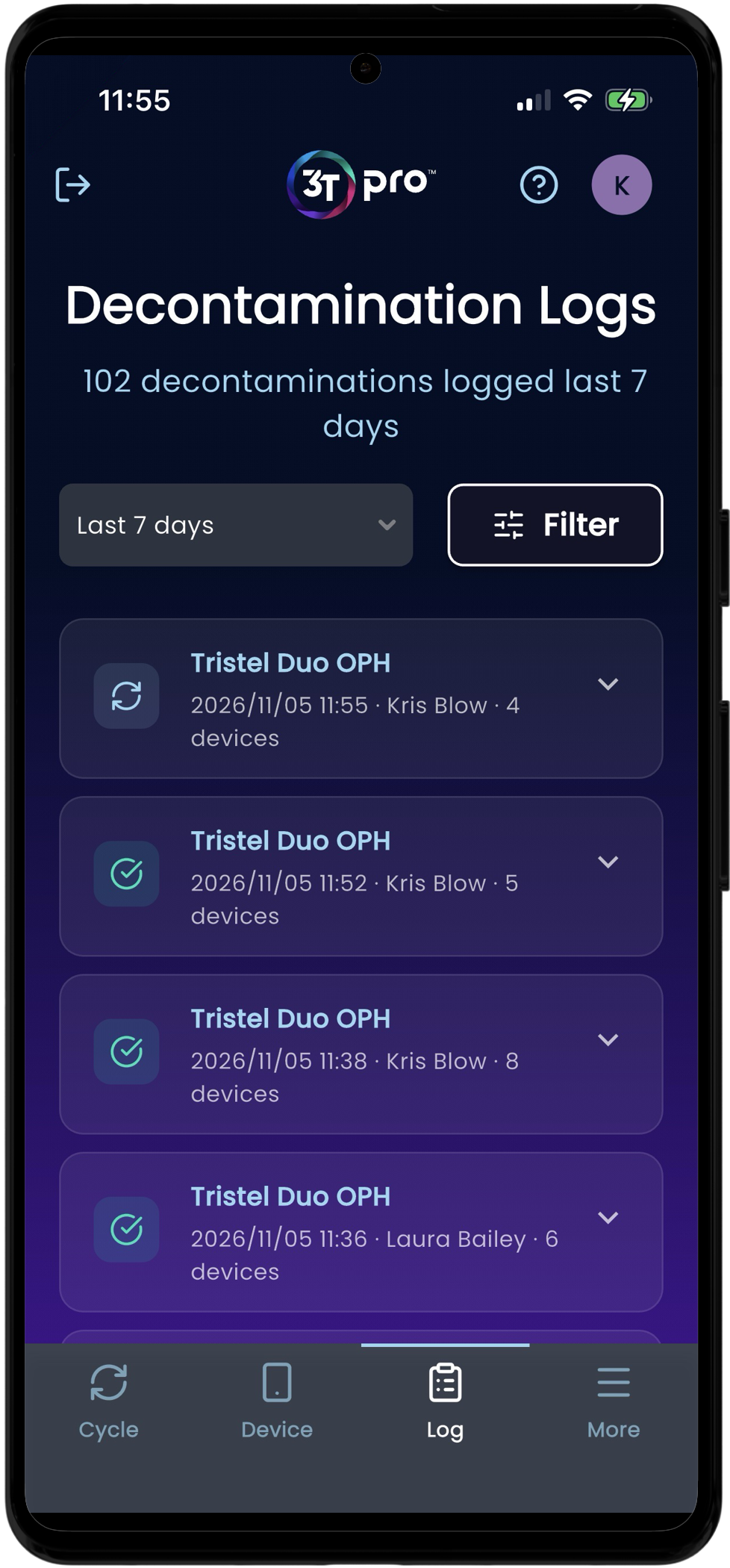
The progress can also be monitored in the Logs page, where batches of cycles are grouped together within the batch they were decontaminated in.
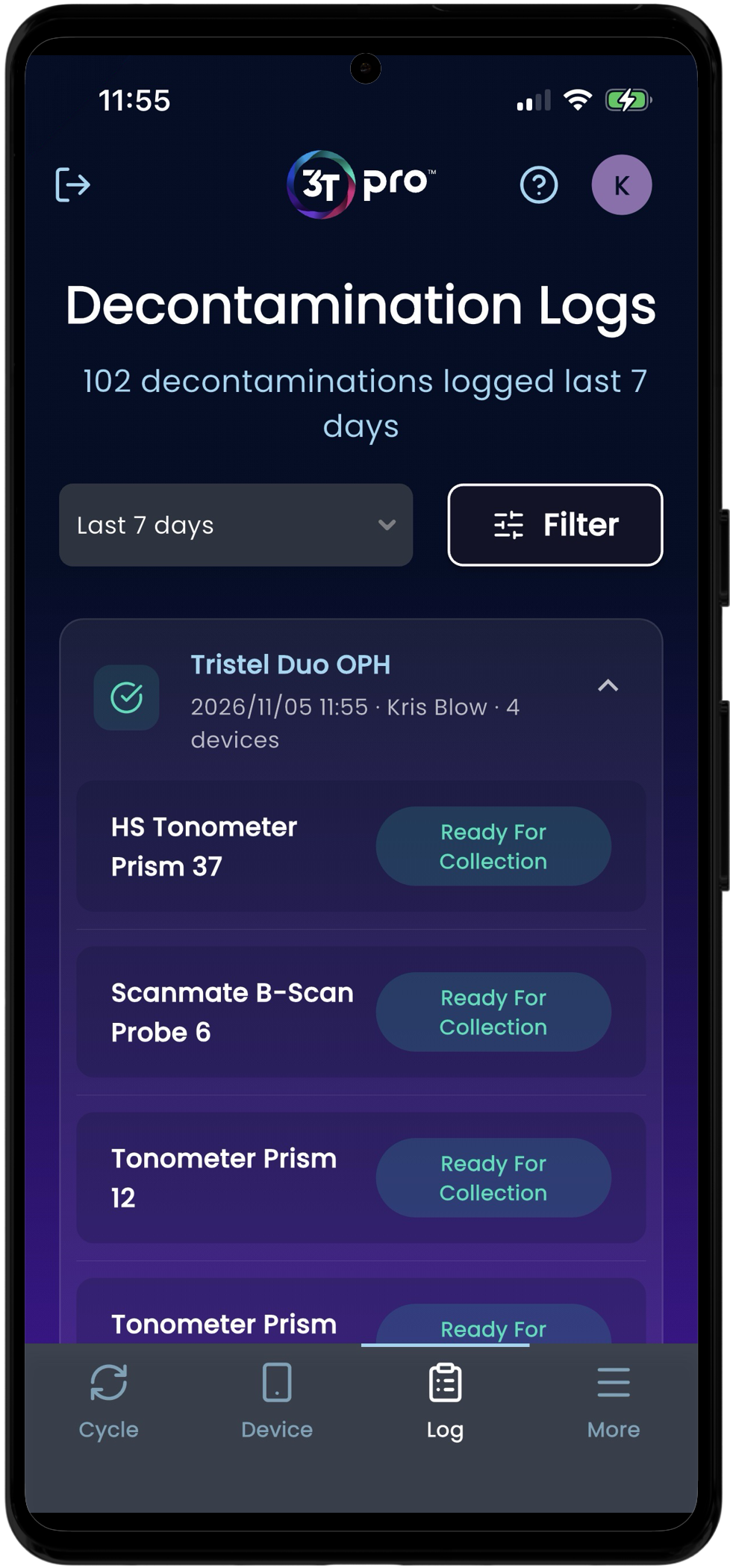
As per individual cycles, batch cycles can be performed offline, and will be synced with 3T when the handset comes back online.
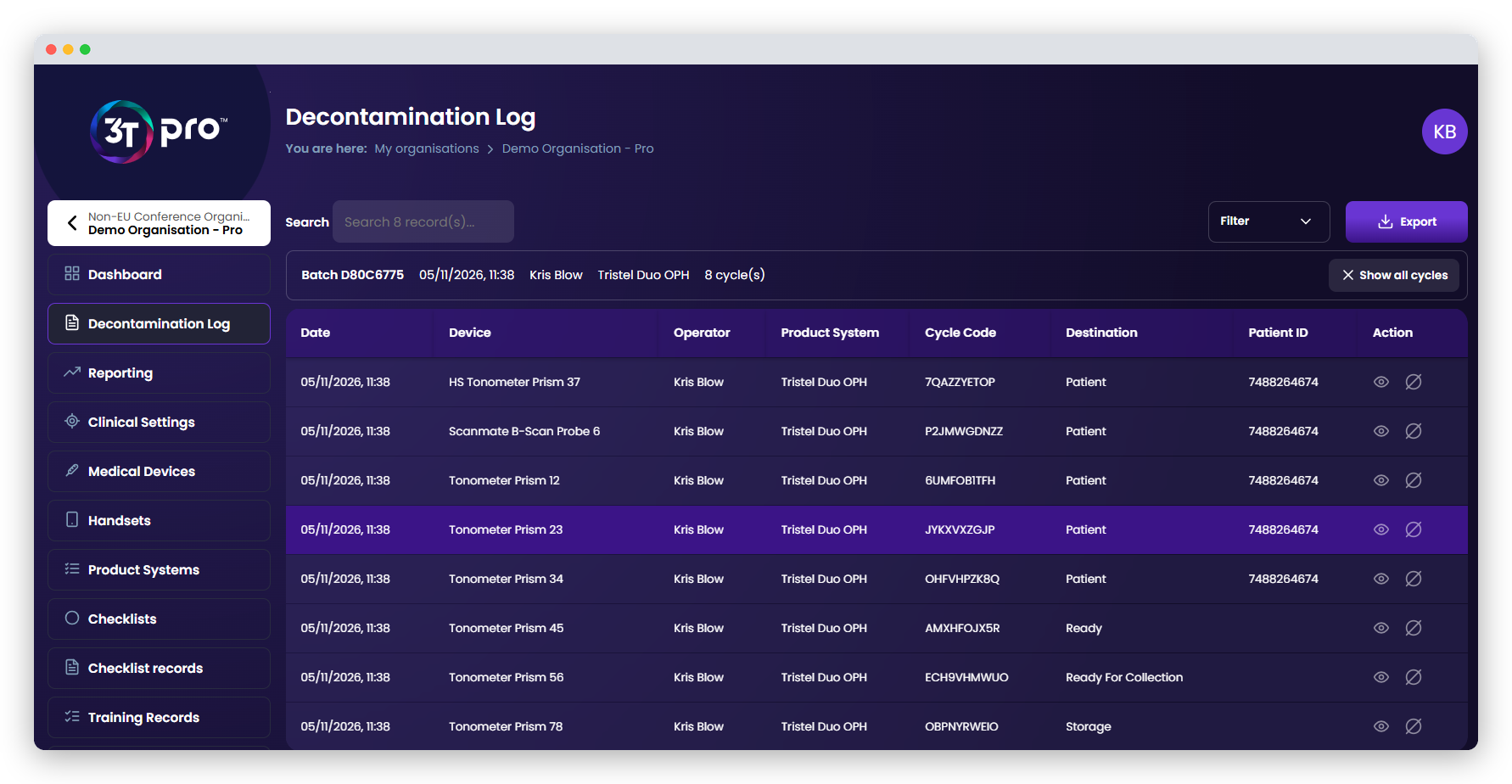
Batch cycles are shown in the portal individually, in the same list as individual cycles. To view all medical devices that were decontaminated in the same batch, locate one of the cycles in the batch in the portal and click on the detailed view of that cycle. The batch it was included in will be shown on this page, with a link to see all medical devices in the batch. Clicking on the link will take the user to the decontamination list view, with only those carried out in the same batch being shown.
Was this article helpful?
That’s Great!
Thank you for your feedback
Sorry! We couldn't be helpful
Thank you for your feedback
Feedback sent
We appreciate your effort and will try to fix the article