This article will walk through the steps on how to set up a SmartPass (staff ID operator card) to allow a staff member to use the card to identify themselves when logging in.
You will need a mobile device with 3T on it and a blank 3T SmartPass.
Step 1: Log in to 3T by entering your Staff ID & 4 digit PIN.
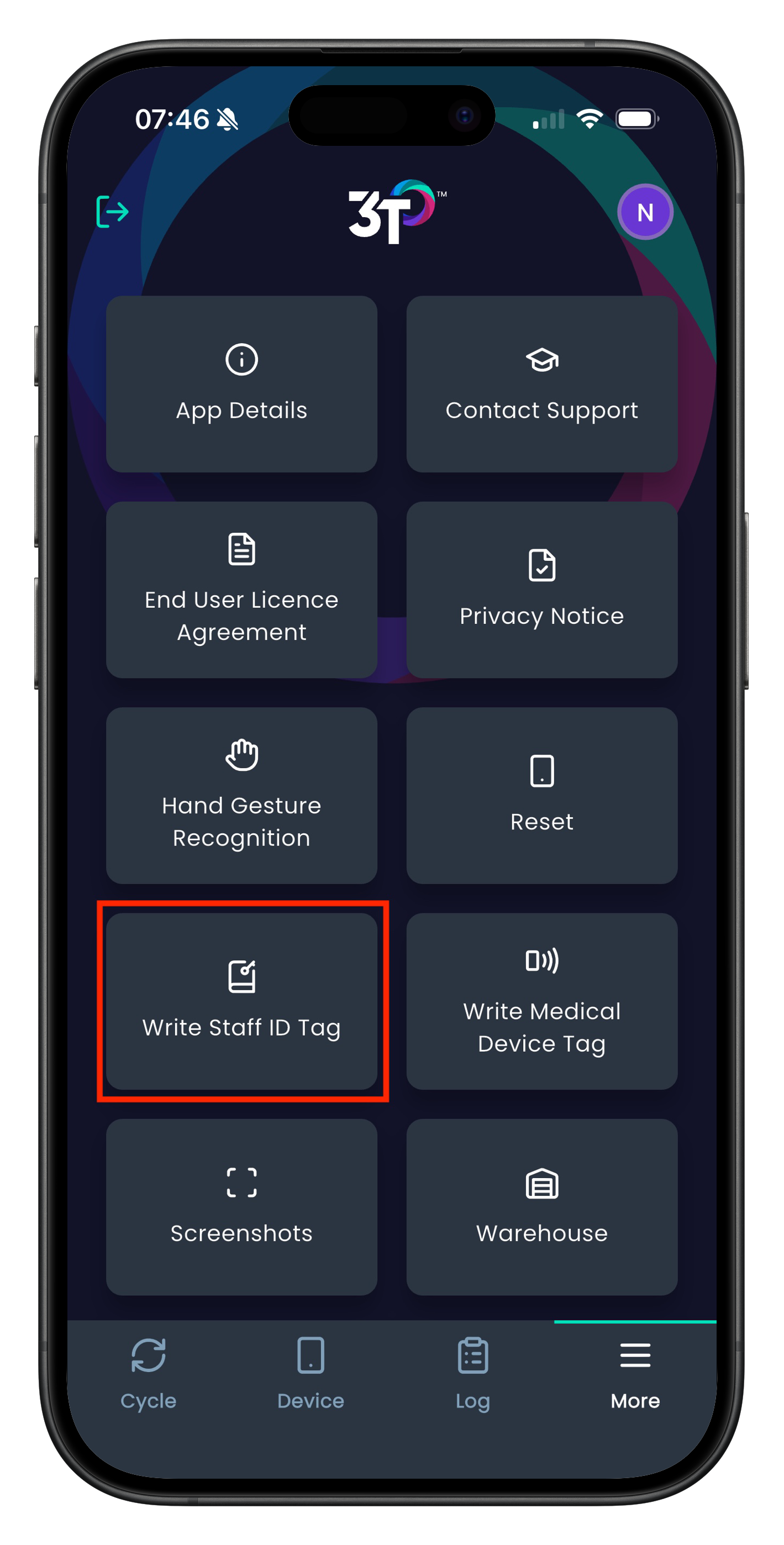
Step 2: Tap the 'More' section on the bottom right of the app, and select 'Write Staff ID Tag'.
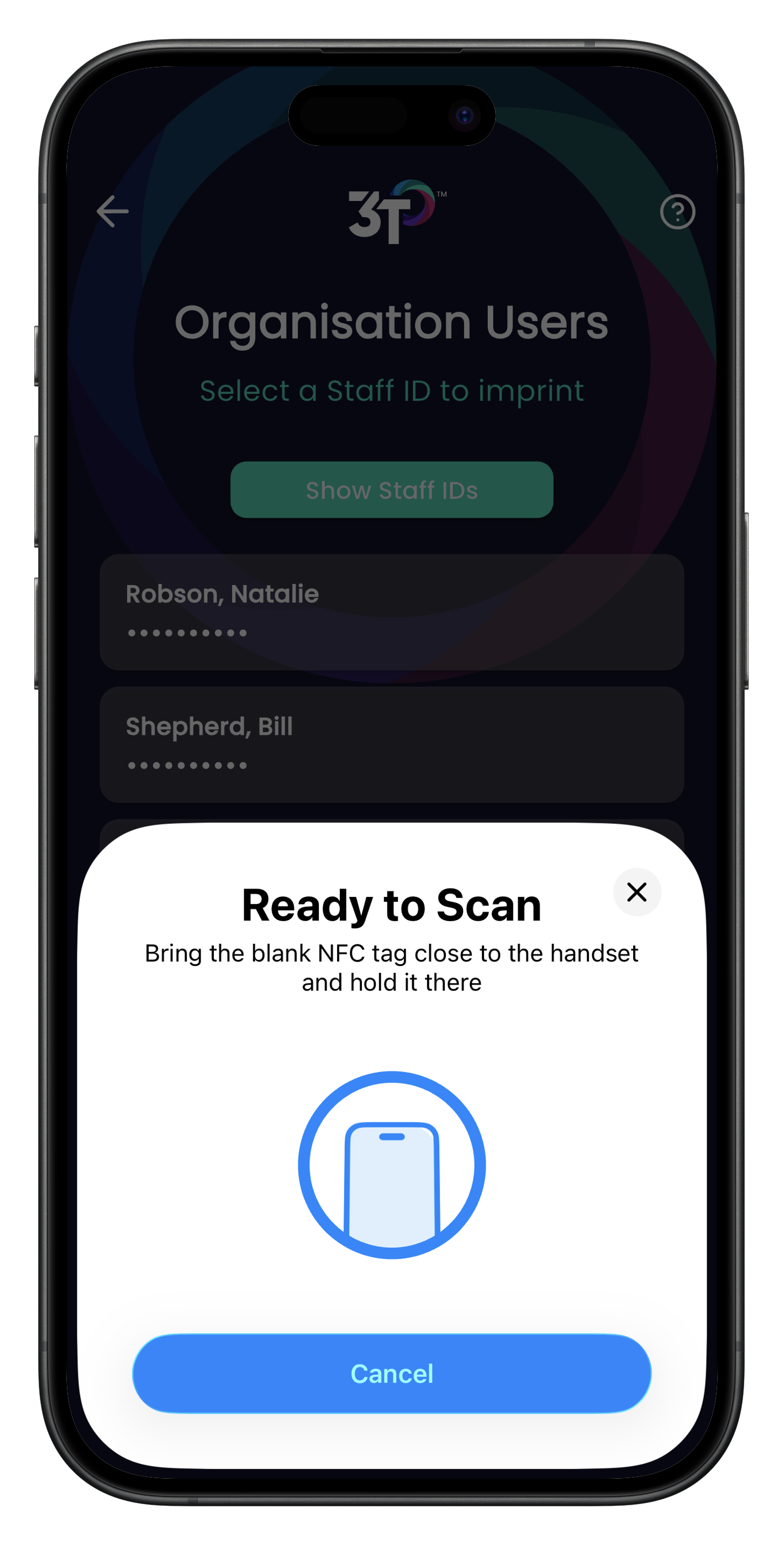
Step 3: Select which Staff ID you'd like to imprint on the card. You can tap 'Show Staff IDs' to be sure you are selecting the right one.
Step 4: Place the SmartPass against the back of the mobile device and hold it there. The mobile device may vibrate or ping to notify you that it registers the NFC card is near - do not remove the card yet.
Step 5: Once the app shows a green check mark, the card has been successfully imprinted with the Staff ID.
You may now log in to 3T using the card by tapping the NFC icon on the screen, and then tapping the operator card to the device. It should allow you bypass manually entering your Staff ID, and only request your PIN.
Was this article helpful?
That’s Great!
Thank you for your feedback
Sorry! We couldn't be helpful
Thank you for your feedback
Feedback sent
We appreciate your effort and will try to fix the article