Audit Checklists have been introduced to 3T for Pro level subscribers. Its aim is to bring 3T’s reliable traceability to non-decontamination tasks around a hospital or clinic, to ensure that all rooms and staff members are fully prepared for the day ahead, or fully closed up for the day that’s just passed.
Every Pro organisation has the ability to turn on Audit Checklists through the Preferences page on the 3T dashboard.
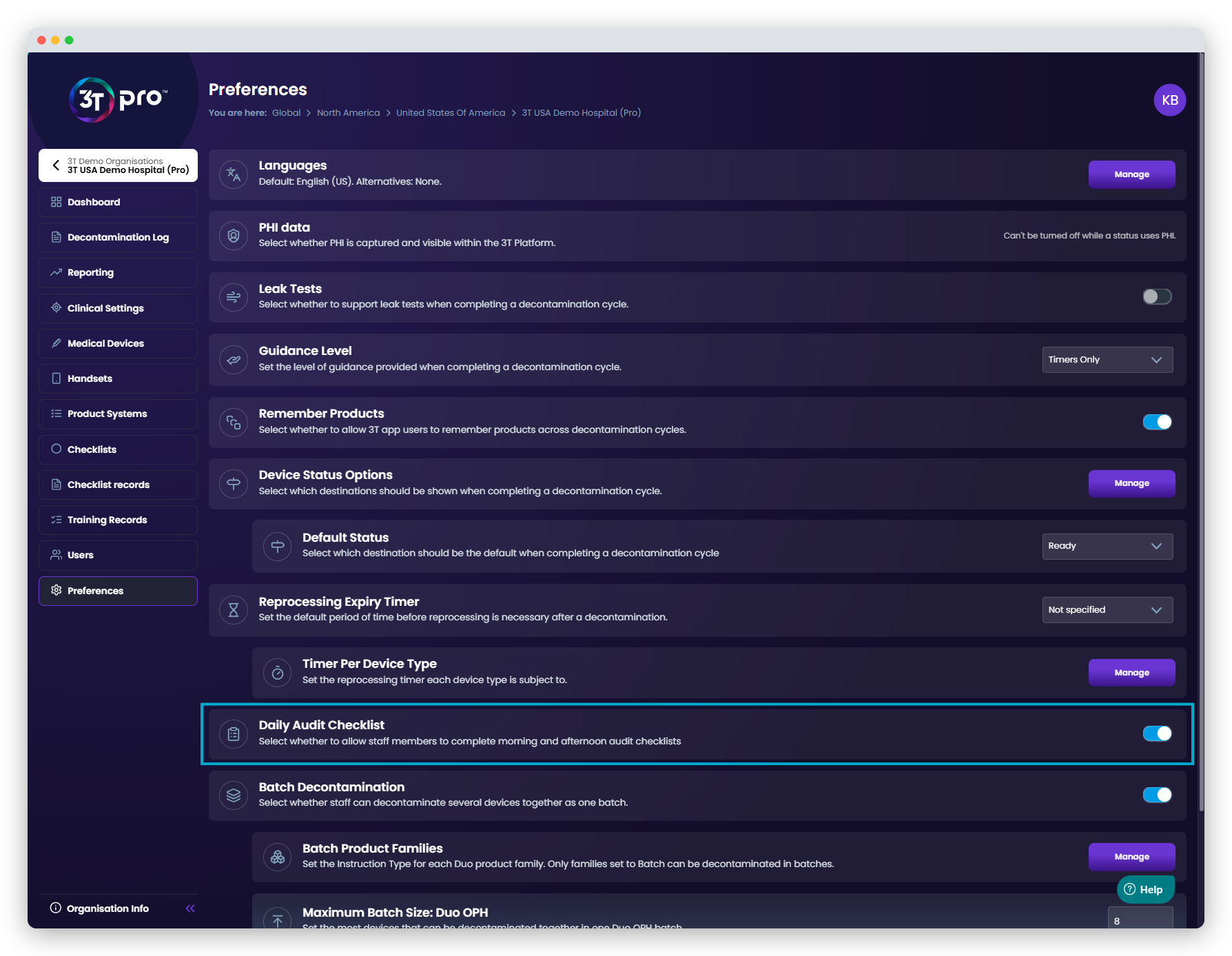
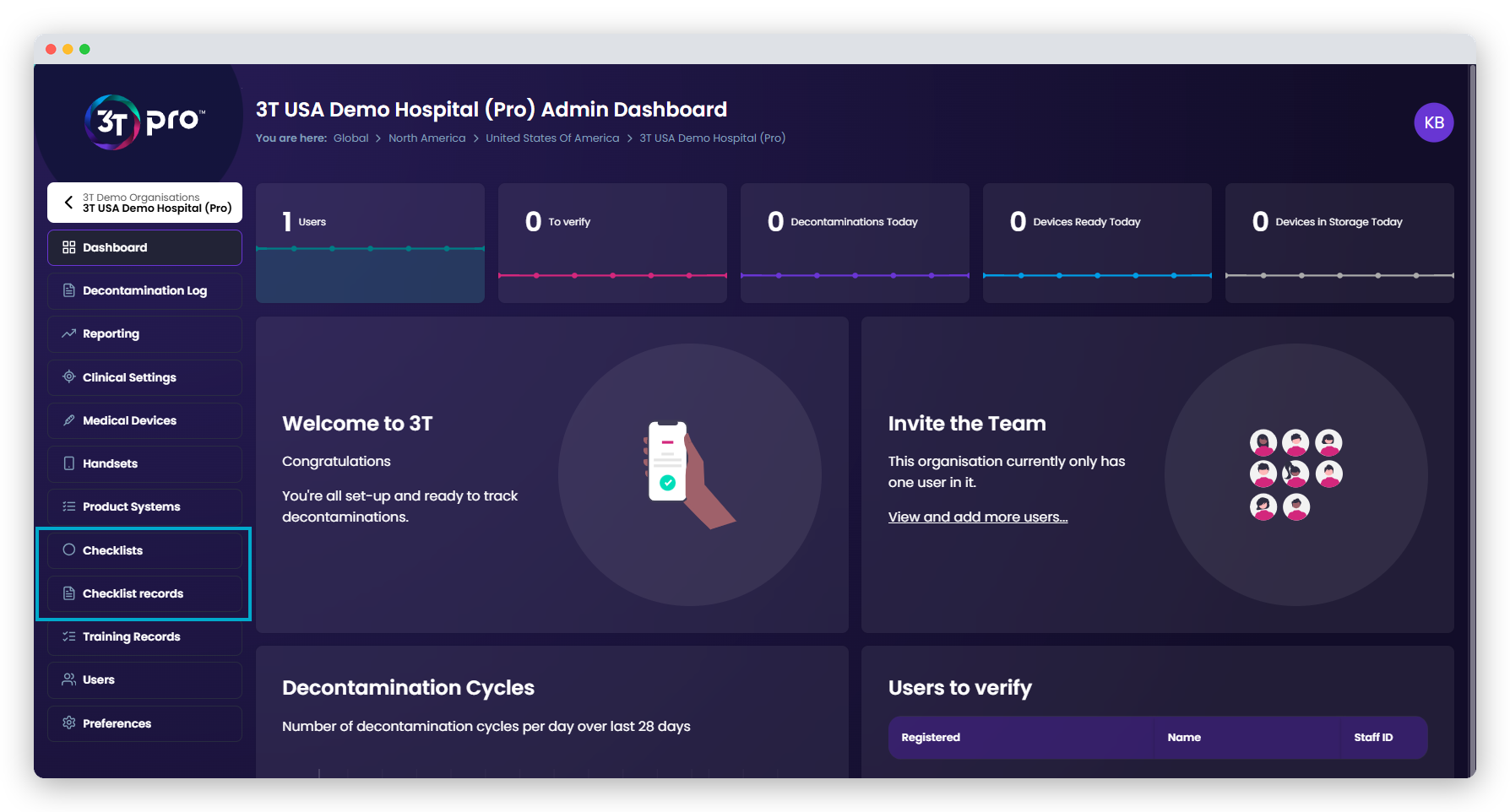
When turned on, the Checklist options will appear in the left-hand menu of the dashboard, and give Organisation Administrators the ability to create a Checklist template, for use by any app user when conducting checks on rooms, and view all completed Checklists within the organisation.
Organisation Administrators can create a Checklist in one of four ways.
- Use a template that has been created by Tristel. These are aimed at an app user beginning or ending a shift in their assigned location
- Create a template using the suggestions created by Tristel, with an adjusted order
- Create a template using the suggestions created by Tristel, but with edits made to the titles, descriptions, optional additional text fields or desired outcome
- Create a template completely from scratch, with your own bespoke titles, descriptions, optional additional text fields and desired outcome
To create a checklist, click on the “Checklists” option in the left-hand menu of the portal. The portal will prompt you to create a Checklist if none exist in the organisation already, but further Checklists can be created by clicking on the “+ Create Checklist” button.
On creating a Checklist, you may select one of Tristel’s suggested templates, for either starting a day, or closing off a day, or start a new Checklist from scratch.
Using A Tristel Template
On release, there will two templates available to Organisation Administrators for Checklists – “Opening” and “Closing”. To find out whether you want to use one of the templates, clicking on one will give you a preview of the prompts that are in the Checklist.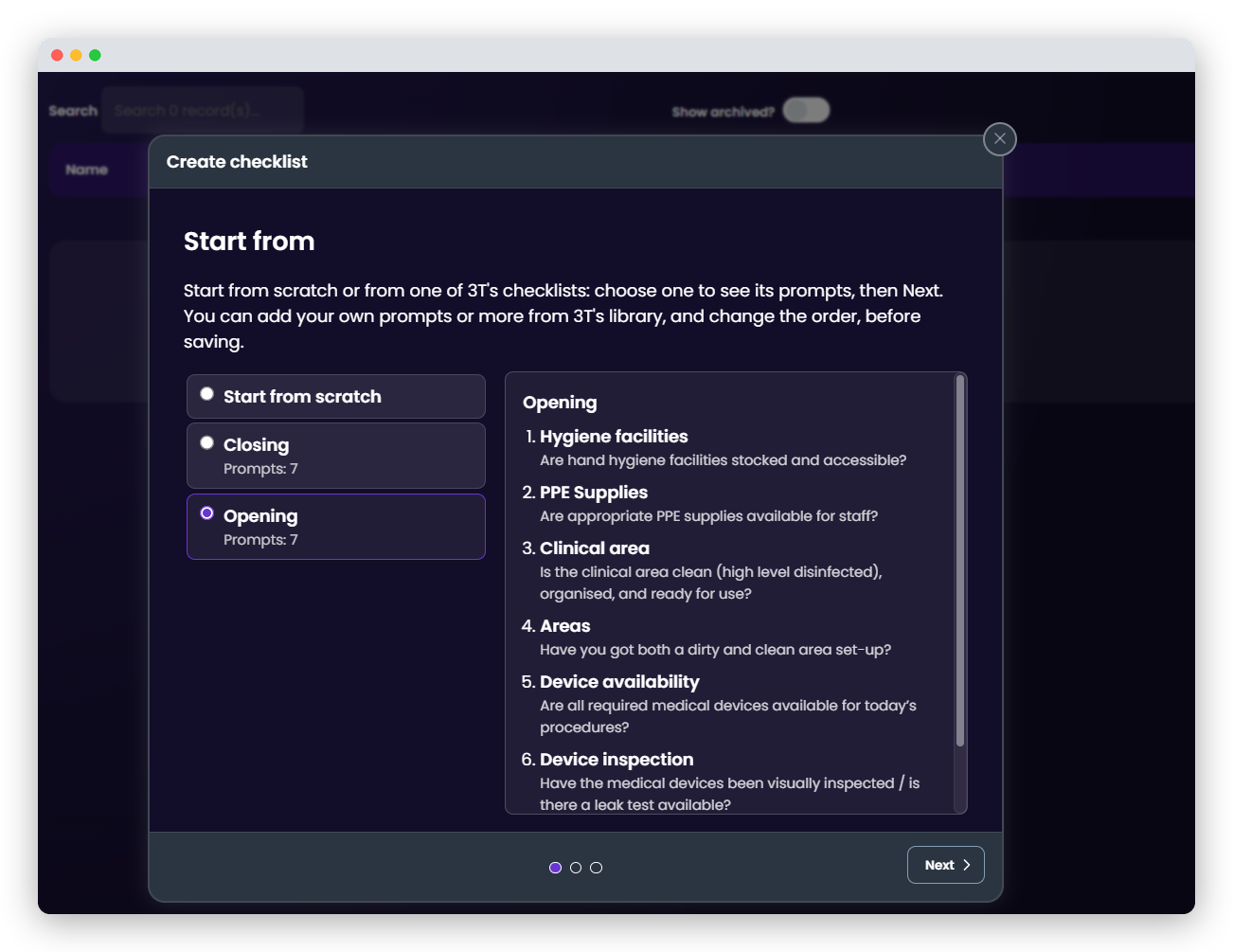
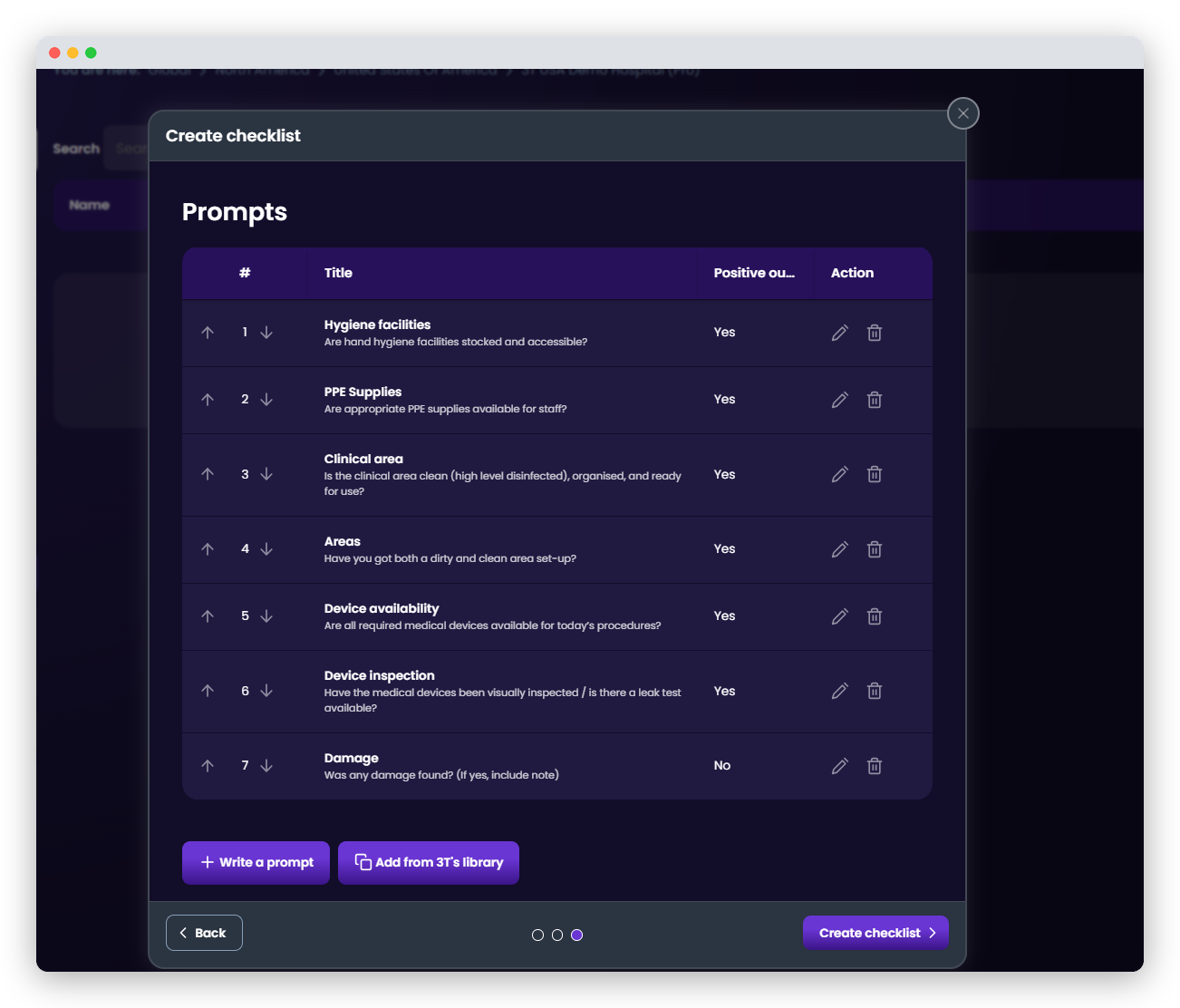
If the template suits your organisation’s needs, you can use it, unchanged. To do this, simply click “Next” through the options, ending with “Create Checklist”.
Your Checklist is now saved and is available in the app for use.
Editing A Tristel Template
If you’ve taken a look at one of Tristel’s templates, but you’d like to make a few changes, the Pro portal allows you to do this.
As before, click on the “+ Create Checklist” button and select the Tristel template you’d like to base your Checklist on. We recommend using the one that is closest to what you need, so you need to make as few edits as possible.
On the first screen, you may rename your Checklist. Please note that the portal will not allow you to duplicate Checklist names – they must all be unique within your organisation.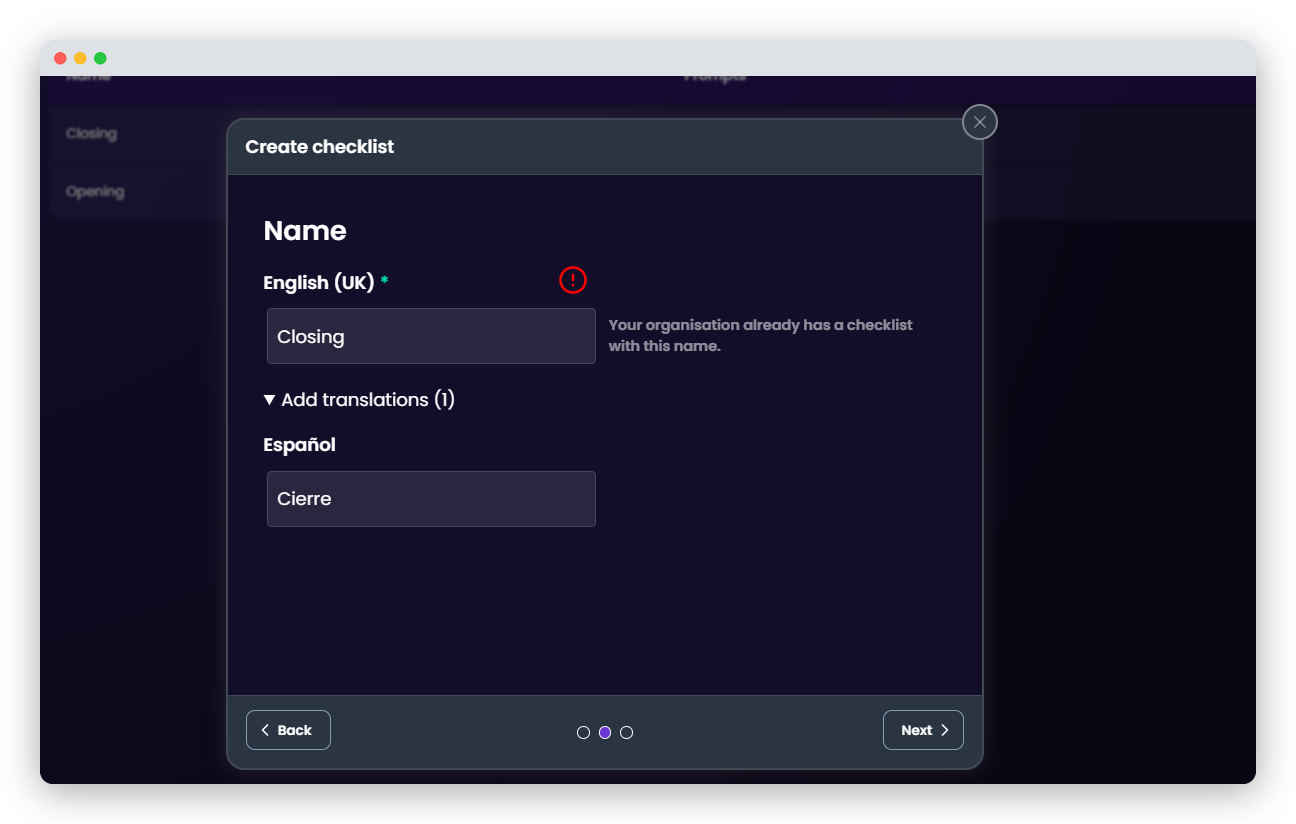
Please note, that the portal will show any alternative languages in your organisation in this section. It is not mandatory to edit any of the alternative language translations, but we highly recommend keeping all Checklist names, prompt titles and prompt descriptions correctly aligned, to ensure that all users are following the same steps in their Checklists.
Once the name of the Checklist has been set, you have the option of editing any of the prompts within it. All prompts will be shown in the order they will be presented to users in the app in, with their titles, descriptions and positive outcome displayed.
Use the directional arrows to change the order of the prompts.
Use the trash can icon to remove a prompt from the Checklist.
Use the pencil icon to edit the title, description, positive outcome and optional text field of the prompt.
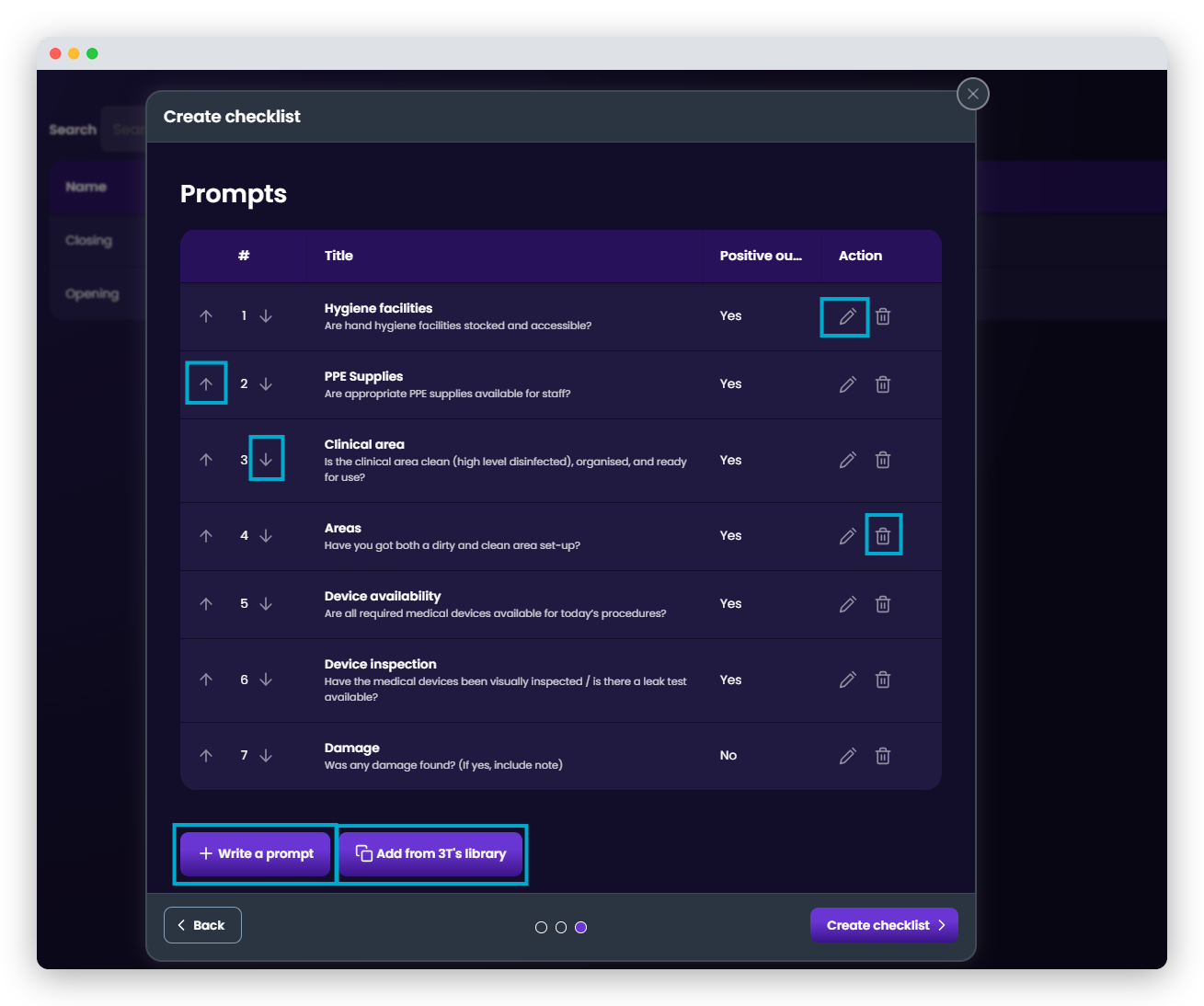
You may also write a new prompt from scratch, using the “+ Write a prompt” button, or add a pre-populated prompt from Tristel’s list of prompts by using the “Add from 3T’s Library” button.
There is more on these options in the next section.
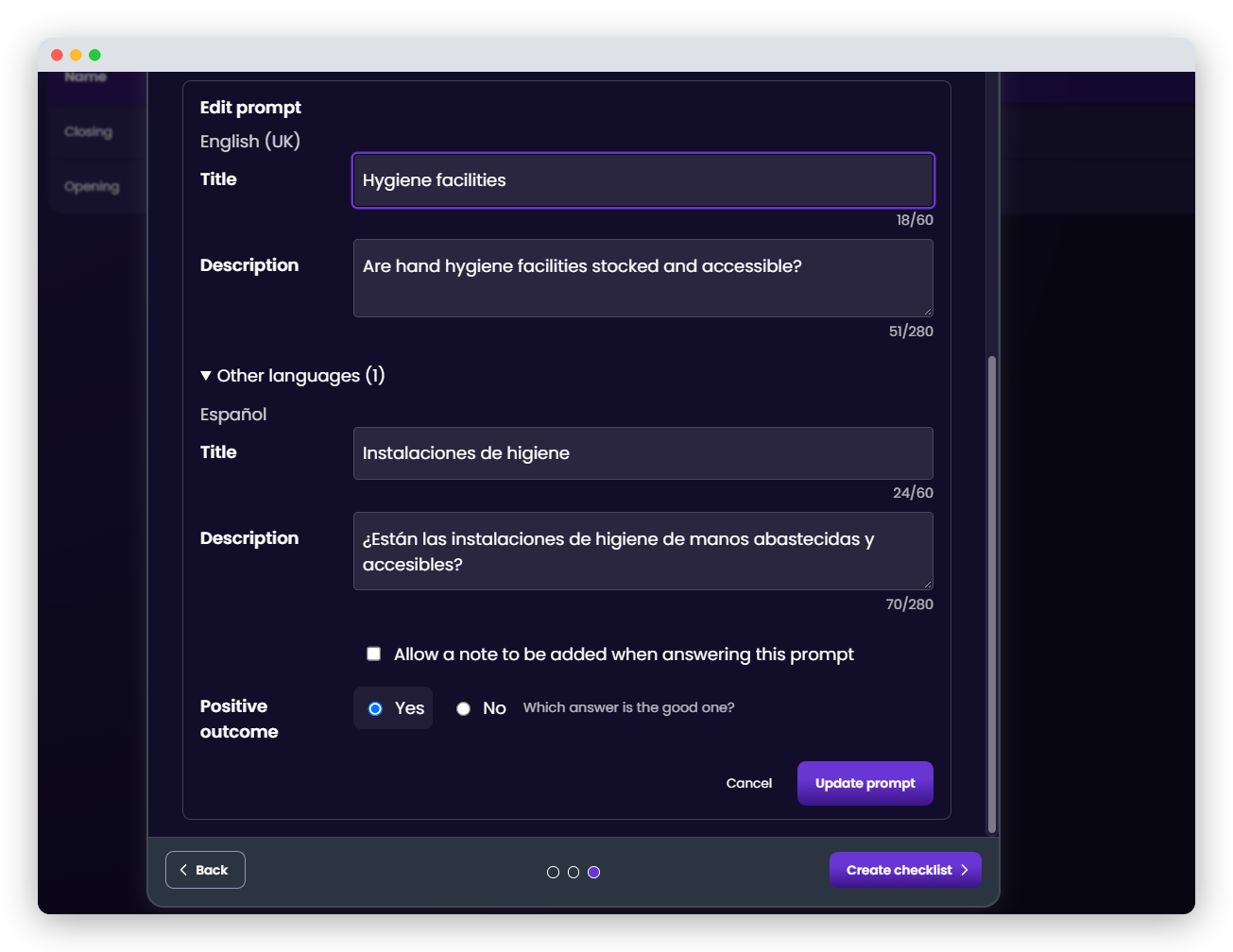
When editing a prompt, it will be shown within the same window as above. You will be shown the title and description of the prompt in all languages assigned to your organisation.
You may edit these fields as best suits your organisation’s needs and we highly recommend ensuring that all fields are consistent across languages.
By ticking the checkbox, you will allow users completing the Checklist to allow free format text to their answer. This will be useful if a simple yes or no answer is not enough and you need more information. For example, a prompt asking whether there is damage to any medical devices may need more information, such as which medical device is damaged and where the damage is.
The positive outcome field allows you to determine which is the desired outcome for a prompt. In the example below, the positive outcome is “yes”, because the organisation wants hygiene facilities to be stocked and accessible. In our damage example above, the positive outcome will be “no”, as we do not want medical devices to be damaged.
You are free to edit, change, reorder and translate as many prompts as works best for your organisation, but please note, all user generated translations are the responsibility of the Organisation Administrators.
Creating A Checklist From Scratch
Finally, Organisation Administrators have the option of creating a Checklist from scratch. The process is the same, but all Checklist names, prompt titles, prompt descriptions, ordering, optional text boxes and positive outcomes are determined by the Organisation Administrator.
All prompts must be supplied in the organisation’s default languages and may be supplied in the alternative languages. Any content supplied in the default language without translations supplied will show in the default language to all users.
Was this article helpful?
That’s Great!
Thank you for your feedback
Sorry! We couldn't be helpful
Thank you for your feedback
Feedback sent
We appreciate your effort and will try to fix the article